Friday, December 3, 2021

Sales Order Due for Deliveries Report

You can use transaction VL10A for creating delivery documents from sales orders that are due on certain dates. Here is how to use it:

  1. Restrict the shipping point (for example I enter shipping point “1001”) and enter from-date and to-date in the windows of “Delivery Creation Date” field.
  2. Leave “CalcRuleDefltDlvCrDt” field blank.
  3. Leave all the other parameters blank (from tab “General Data” to “User Role”). By doing this, you are going to list the sales order within certain range of date from a certain shipping point that you can convert to delivery documents at once.
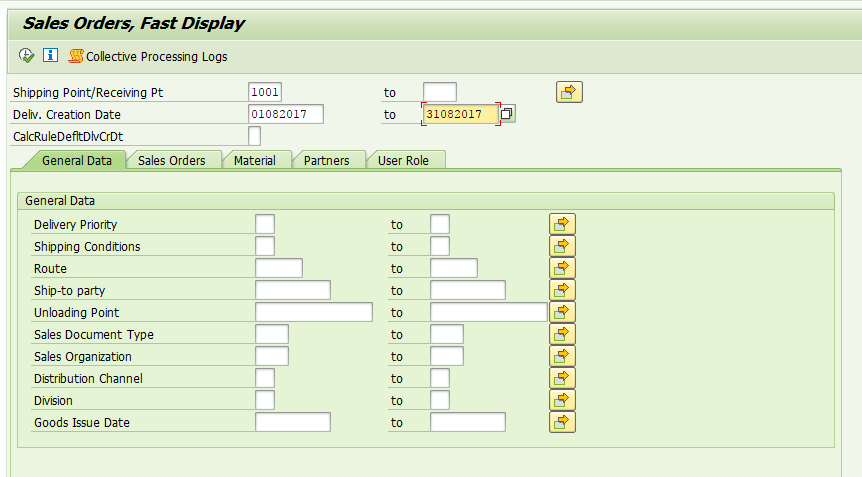
Initial Screen of Transaction VL10A

This work list will show which sales orders are late for delivery by giving red traffic light. Now, select one of the documents and click on the “Background” button. The system will automatically run the outbound delivery creation in background and will give you the new outbound delivery number.
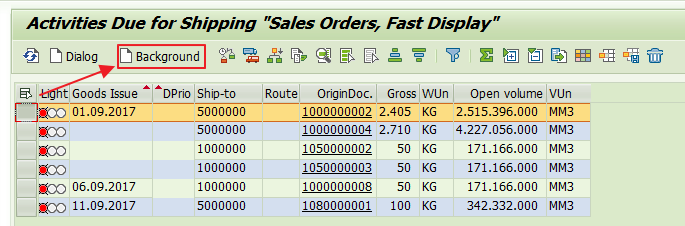
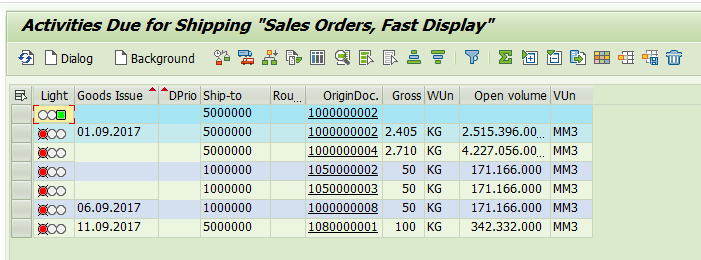
List of Sales Orders Due for Shipping
A Delivery Document is Created

Now, select one of the Sales Order documents, but this time click on the “Dialog” button. This transaction allows you to proceed the document manually by calling VL02N to process the selected document.
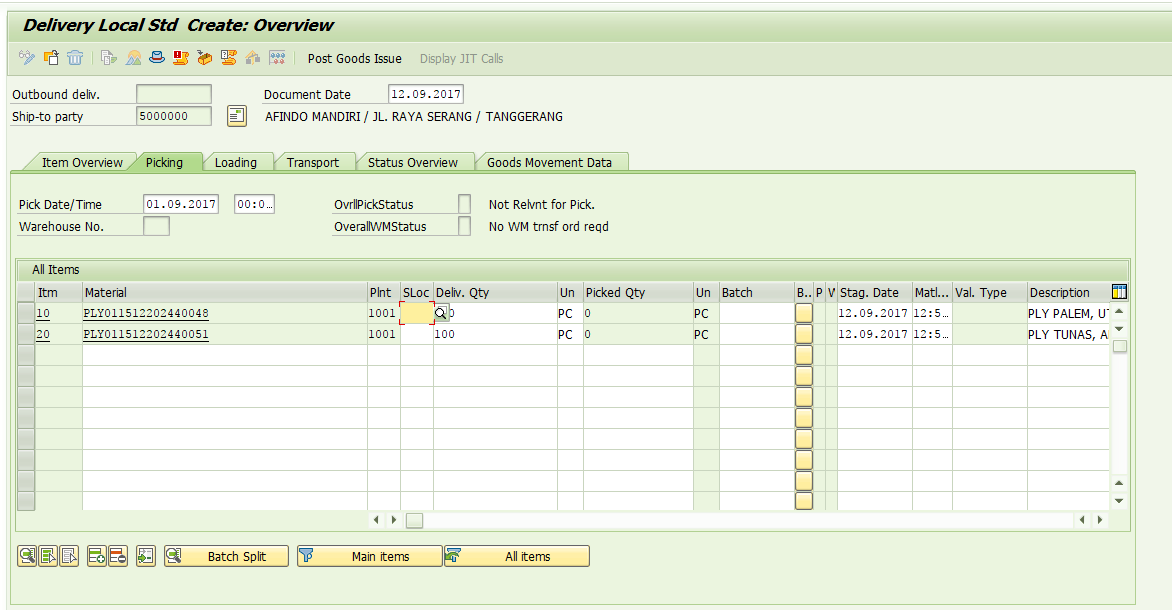
The Dialog Button Will Bring You to Transaction VL02N

SAP SD Standard Reports


VA15NInquiries List
VA25NQuotations List
SDQ1Expiring Quotations
SDQ2Expired Quotations
SDQ3Completed Quotations
VA05NList of Sales Orders
SDO1Orders Within Time Period
V.02Incomplete Orders
VA35NList of Scheduling Agreements
VA45NList of Contracts
SDV1Expiring Contracts
SDV2Expired Contracts
SDV3Completed Contracts
VA14LSales Documents Blocked for Delivery
V.23Sales Documents Blocked for Billing
VL06OOutbound Delivery Monitor
VF05NList of Billing Documents
VB(8List Rebate Agreements
S_ALR_87012218Credit master sheet
F.31Credit Management Overview
FCV3Credit Management Early warning list
MCTASIS: Customer Analysis
MCTCSIS: Material Analysis
MCTESIS: Sales organization
MCTKSIS: Shipping point
MCTISIS: Sales employee
MCTGSIS: Sales office
MC(ASIS: Incoming orders
MC+ASIS: Returns
MC+ESIS: Customer Analysis: Invoiced Sales
MC+ISIS: Customer Analysis: Credit memos
F.35SIS: Credit master sheet
MC(ESIS: Material Analysis: Incoming orders
MC+MSIS: Material Analysis: Returns
MC+QSIS: Material Analysis: Invoiced Sales
MC+USIS: Material Analysis: Credit memos
MC(ISIS: Sales Orgn Analysis: Incoming orders
MC+YSIS: Sales Orgn Analysis: Returns
MC+2SIS: Sales Orgn Analysis: Sales
MC+6SIS: Sales Orgn Analysis: Credit memos
MC(MSIS: Sales Office Analysis: Incoming orders
MC-ASIS: Sales Office Analysis: Returns
MC-ESIS: Sales Office Analysis: Sales
MC-ISIS: Sales Office Analysis: Credit memos
MC(QSIS: Sales Employee Analysis: Incoming orders
MC-MSIS: Sales Employee Analysis: Returns
MC-QSIS: Sales Employee Analysis: Sales
MC-USIS: Sales Employee Analysis: Credit memos
VC/2Sales Summary (Customer Fact Sheet)
V/LDPricing Reports
VD59List Customer Material Info
VB35Promotion List
VB25List of Sales Deals
VC05List of Sales Activities
VB25List of Sales Deals
VCUSTCustomer List
VA06Sales order Monitor
SDD1Duplicate Documents

Tuesday, September 28, 2021

SAP FTP CONNECTION


SAP FTP CONNECTION


I am writing this blog post for the FTP connection to the SAP ABAP system. While I was configuring the SAP FTP, I haven’t found complete information in a single blog post, So I am writing this blog post.

PRE-REQUISITES:

  • FTP credentials.
  • SAP GUI credentials with authorization.
  • SAP OS access to check IP ports accessibility.
  • Network basic understanding.

STEP TO CONFIGURE FTP FOR THE SAP ABAP SYSTEM.

  • Check FTP server IP and network Port.
    • Note down the FTP IP and port provided by FTP/OS team.
    • Telnet FTP server IP on a specific port. The default port is 21.
    • Telnet Syntax (Linux & windows): telnet <IP> <PORT>
  • Check FTP is accessible from SAP system OS.
    • telnet 123.12.21.20 21


·        

    • Make sure it will connect.
    •  
  • Add FTP server entry in SAP Table.
    • Maintain FTP entry in SAP table (SAPFTP_SERVERS_V) using tcode sm30
    • SAPFTP_SERVER_V is a client dependent table. Add entry in those specific clients who are going to connect to FTP.


·        

    • Click on the Maintain button & click on the New Entries button.


·        

    • Add IP address, PORT and Description.


·        

    • After maintaining entry click on the save button.


  • Test FTP connection using SAP standard Program.
    • Execute SAP program rsftp002 using tcode SA38.


·        

    • Click on the execute button and enter details.


·        

    •  


·        

    • I am using RFC “SAPFTPA” as FTP is only accessible from the SAP server.

·        

    • If the connection is not successful you get the error like below.


·        

    • or like below.


·        

    • If the connection is successful you will get the output like below.


All screenshots are captured by me.

  • The above procedure will also work for the ABAP systems.
  • Telnet is a very useful tool to check the service port and its accessibility from the target.
  • SAPFTP_SERVERS_V Table is used to store the information about the allowed FTP server.
    • Without entry in this table SAP will not able to establish the connection to the FTP server.
    • If maintain * in this table all FTP servers will be accessible.
  • FTP server by default runs on port 21, If the port is different so maintain that port in SAP_FTP_SERVER_V.
  • Program RSFTP002 is used to test FTP connection and run execute FTP command.
  • There are two RFC that we can use to access FTP.
    • SAPFTP uses frontend/Local computer internet to access the FTP server.
    • SAPFTPA uses backend/SAP server internet to access the FTP server.